
HTTP Knowledge Base
Fetch data from API endpoint with headers and authentication support
What is HTTP KB?
HTTP Knowledge Base allows you to fetch data from API endpoints with custom headers and authentication support. Perfect for data requiring API keys or tokens, or data that changes frequently and needs periodic refresh.
Support custom headers & API keys
Perfect for frequently changing data
Extract data from JSON/XML
When to Use HTTP KB?
Fetch product data, prices, stock from e-commerce API
Articles, blog posts, or content from headless CMS
Frequently changing data like prices, status, availability
Resources requiring API key or Bearer token
How to Create HTTP KB
- 1 Open Resources → Create Resource
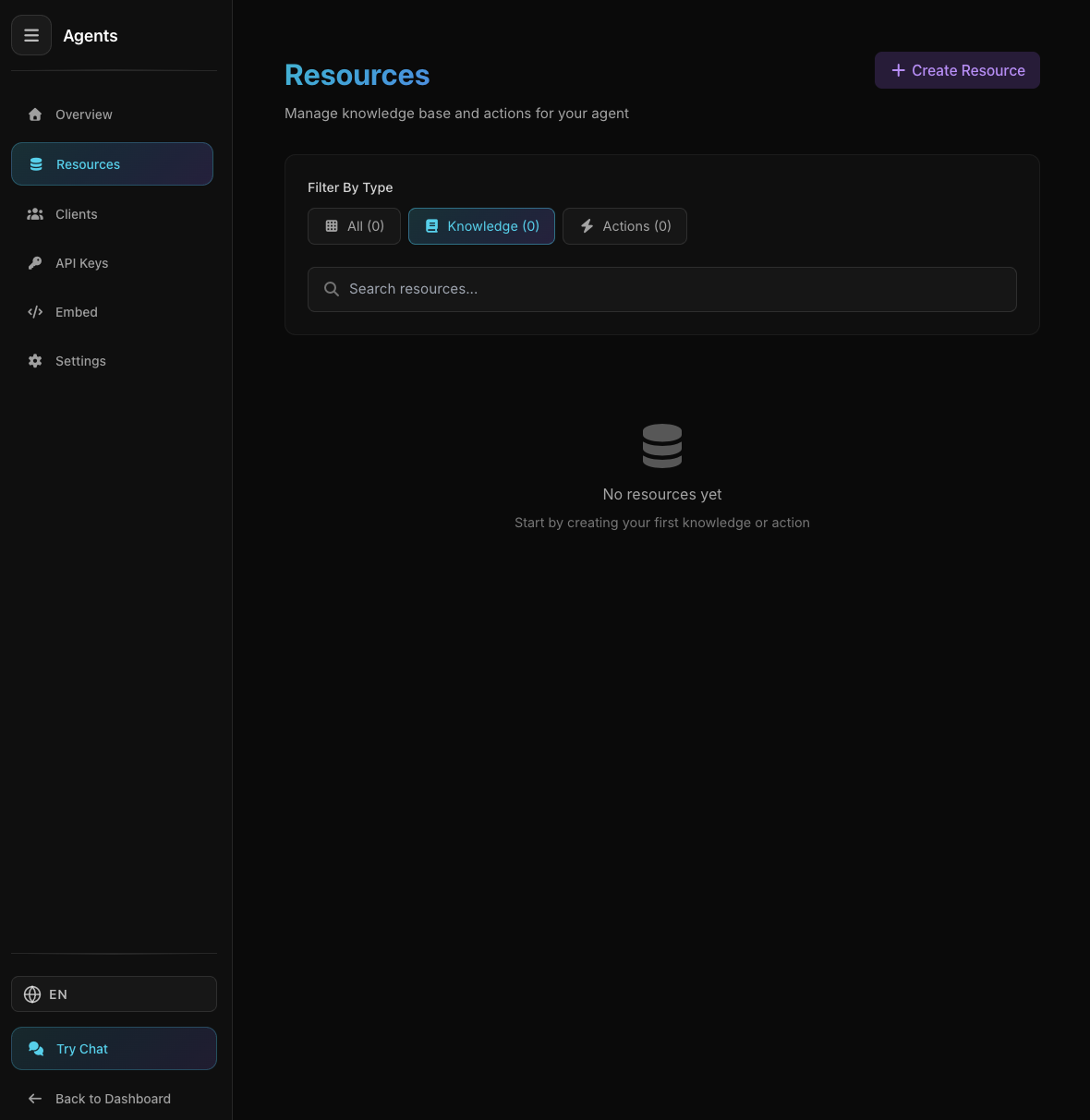
Agent Resources Page
Agent Resources Page
Select Knowledge → HTTP
- 2 Fill Name & Description
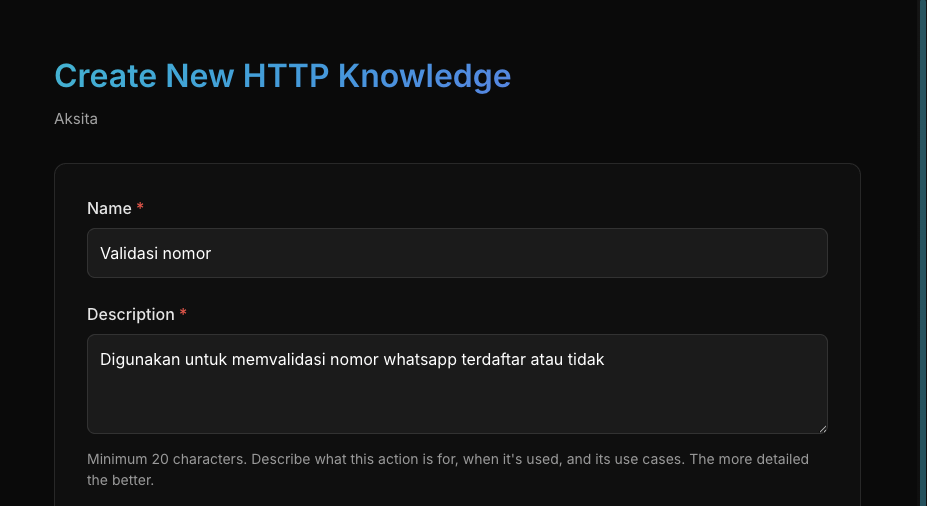
HTTP URL Form
HTTP URL Form
Provide clear name and description for this knowledge base
Name
Product Catalog APIDescription
Fetch product data from API - 3 Enter API URL
HTTP Knowledge Base Form
HTTP Knowledge Base Form
Enter complete API URL and select HTTP method
Select HTTP Method:
GETPOSTPUTPATCHDELETEEnter URL:
https://api.example.com/v1/productshttps://api.example.com/articles?limit=100Dynamic ParametersUse <param> for dynamic parameters to be extracted from conversation:
https://api.example.com/users/<userId>/ordershttps://api.example.com/products?category=<category>&limit=<limit>Agent will automatically extract parameters from user conversation
- 4 Add Headers (Optional)

Add Headers for Authentication
Add Headers for Authentication
Custom headers for authentication or configuration:
Authorization: Bearer YOUR_API_KEYContent-Type: application/jsonAPI-Key: your-api-key-here - 5 Define Body Parameters (Optional)
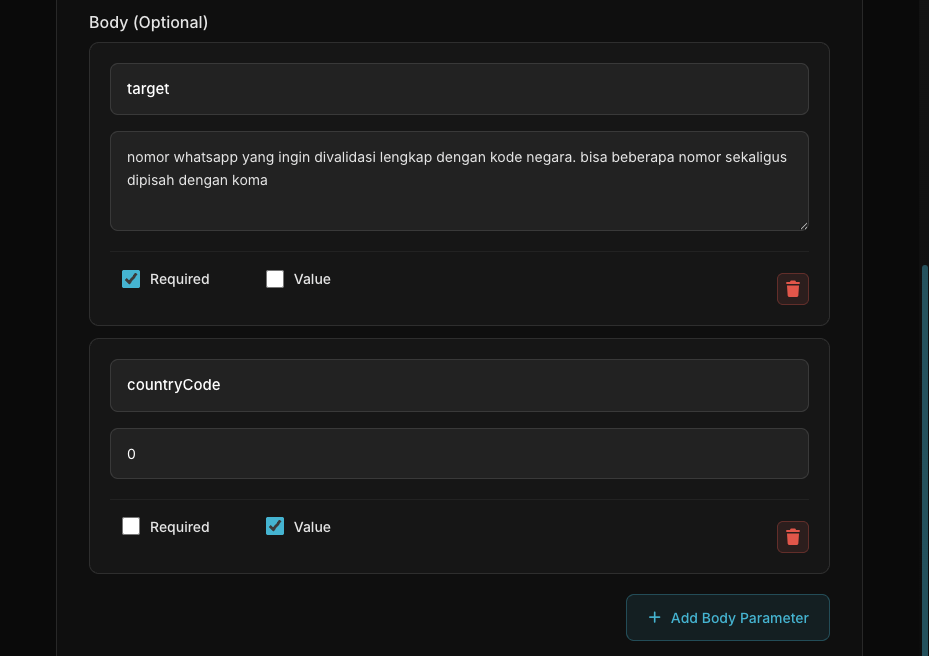
Define Body Parameters
Define Body Parameters
For POST/PUT/PATCH: Data to be sent to API. Agent will extract from user conversation.
queryrequiredSearch keyword
limitoptionalNumber of results (default: 10)
Agent will send JSON:
{ "query": "...", "limit": 10 } - 6 Set Success Condition (Optional)
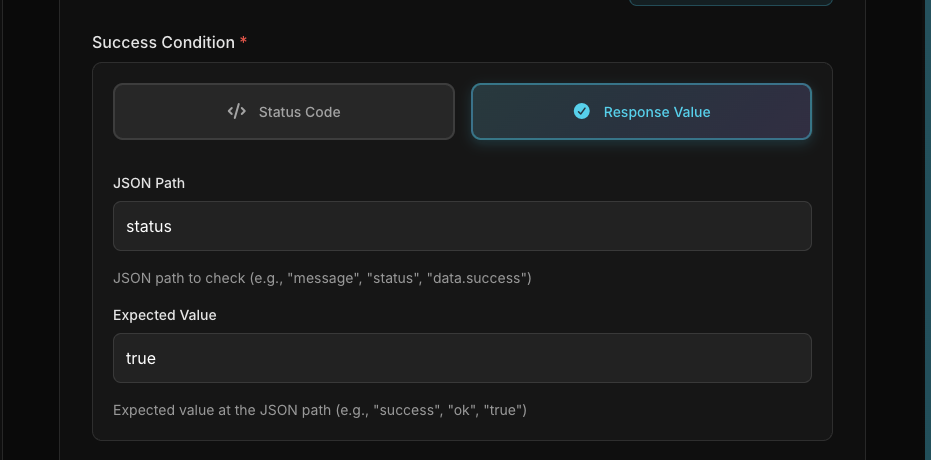
Set Success Condition
Set Success Condition
Define when API call is considered success or failed
STATUS CODECheck HTTP status code
Status Code = 200RESPONSE VALUECheck value in JSON response
response.status = "success" - 7 Test Configuration
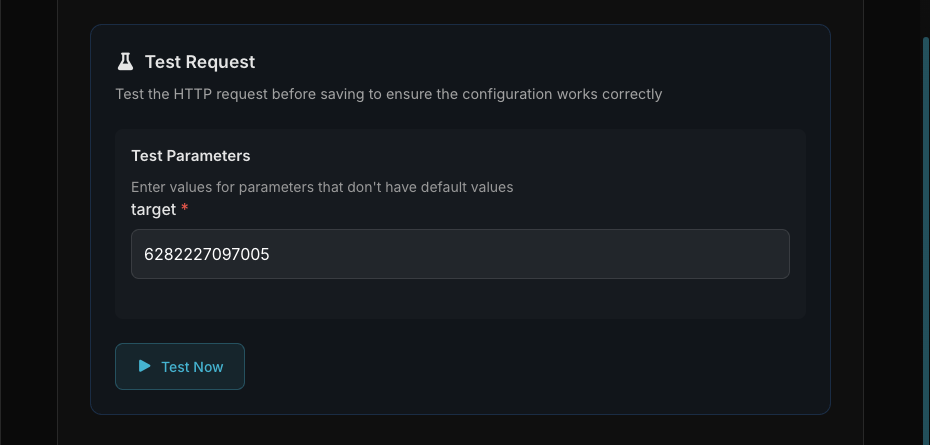
Test HTTP KB
Test HTTP KB
Test before saving to ensure API returns valid data
Success/Failed✅ Green = success, ❌ Red = failed
Status Code200 = OK, 404 = Not Found, 500 = Error
ResponseData from API
Execution TimeResponse time (ms)
- 8 Click "Create"
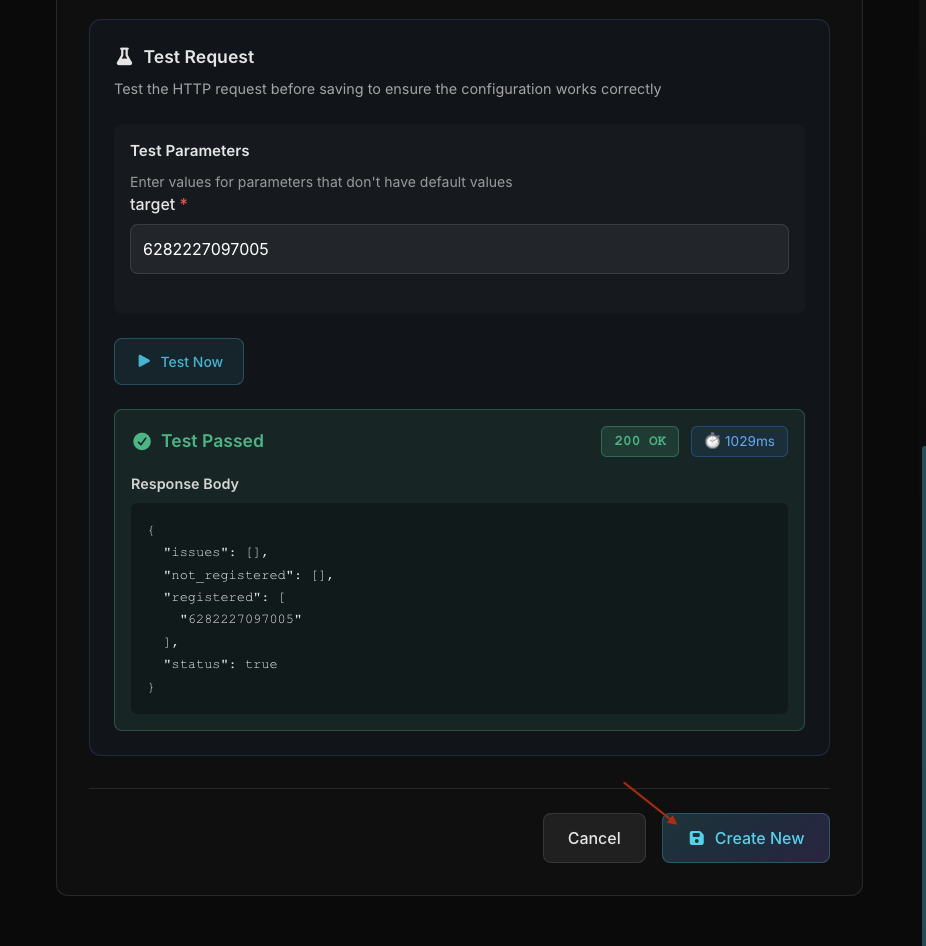
HTTP KB Created Successfully
HTTP KB Created Successfully
If test succeeds, click Create to save the knowledge base
Tips & Best Practices
Ensure API is reliable and not frequently down
Use dedicated read-only API key if possible
Ensure not exceeding API rate limits
Test with staging/dev API first before production
HTTP KB vs HTTP Actions
It's important to understand the difference between HTTP Knowledge Base and HTTP Actions:
- Purpose: Store data as knowledge
- When: During knowledge base creation/update
- Auth: Static API key from platform owner
- Context: Does not use user context
- Example: Fetch product catalog, fetch FAQ from CMS
- Purpose: Execute operations/API calls
- When: When user requests action during conversation
- Auth: User-specific token from Persistent Context
- Context: Uses user context (user_id, token, email, etc)
- Session: Fully Persistent or Time-Based Expiration
- Example: Check balance, transfer money, update profile
Note: HTTP KB is used for general knowledge data. For operations requiring user-specific data (like checking user account balance), use HTTP Actions with Persistent Context.
🔐 Private Actions
Private Actions are HTTP Actions that require Persistent Context. These actions can access logged-in user data (user ID, email, phone, etc) and send it to the API.
HTTP Actions that can only be executed if the user is "logged in" with Persistent Context. Useful for actions requiring user-specific data like check order, update profile, transfer balance, etc.
- 1. Enable Persistent Context in Agent Settings
- 2. Create Login Node to collect user data
- 3. When creating HTTP Action, check the "Private" checkbox
- 4. Check the "Private" checkbox if action requires user context
The LLM will automatically determine what context data is needed based on your action configuration. You don't need to specify which fields to collect - the AI will analyze the URL, headers, and body to understand what context data is required.
When you use placeholders like <user_id> in your action's URL, headers, or body, the system automatically:
- 1. Identifies required context fields (e.g., user_id, token, email)
- 2. Checks if the data is already available in Persistent Context
- 3. If not available, prompts the user to log in or provide information
- 4. Replaces placeholders with actual context data during execution
You only need to focus on action design - let the AI handle data collection!
Action "Check Balance" for banking bot:
- 🔒 Private Actions can ONLY be executed if user is logged in
- Context data is stored securely in the database
- Use Private Actions for all sensitive operations (transactions, personal data)
- ⚠️ Persistent Context must be enabled in Agent Settings
- ⚠️ Login Node must be created and configured
- ⚠️ User must be "logged in" before using Private Actions
⏱️ Context Requirement & Session
Private Actions require the user to have an active Persistent Context. If the user hasn't logged in, the agent will automatically ask them to log in first before executing the action.
- 1. User requests a Private action (e.g., "Check my balance")
- 2. Agent detects this action is Private and needs context
- 3. If user not logged in, agent automatically requests login first
- 4. After successful login, agent executes action with user context
Check my balance
To check your balance, I need you to log in first. Please enter your username and password.
[fills login form]
Your current balance is Rp 5,000,000
Persistent Context supports two session management modes: Fully Persistent (default) or Time-Based Expiration with refresh logic.
Sessions have no expiration time limit and remain active until users manually log out.
- User context is stored permanently in database
- Users don't need to re-login, even after days of inactivity
- Private Actions are always available without re-authentication
- Best for: applications requiring long-term convenience
Sessions have expiration time and can be automatically refreshed by the agent.
- Expiration Time: Token/session expires after set time (e.g., 1 hour, 24 hours, 30 days)
- Auto Refresh: Agent can have HTTP Action to refresh token before expiration
- Seamless: Users don't need to re-login if refresh succeeds
- Re-login: If refresh fails or token truly expires, users are asked to re-login
- Best for: systems with third-party API tokens that have expiration
Users can log out anytime to clear their context, regardless of session mode:
- Users can request logout through conversation with agent
- After logout, all context and tokens are removed from session
- Users need to log in again to use Private Actions
To use Time-Based Expiration with auto-refresh:
- 1. Store refresh_token and expired_at in Login Action response mapping
- 2. Create a Private HTTP Action to refresh token (e.g., "Refresh Token")
- 3. Agent will automatically call refresh action before token expires
- 4. Response from refresh action will update context with new token
Context data is stored securely in database and can only be accessed by the agent and the user who owns the session. Time-Based Expiration mode provides additional security layer by limiting token validity.
- ✓ Inform users that they need to log in for certain actions
- ✓ Create clear error messages if session expires
- ✓ Use Private Actions only for data that truly needs authentication
- ✓ Test login and re-login flow to ensure smooth UX
Test Configuration
Before saving the knowledge base, you can test the HTTP configuration to ensure the API returns valid data.
How to Test
- 1. Fill in all configuration fields (URL, Method, Headers)
- 2. Click the "Test" button at the bottom of the form
- 3. System will send request and display data preview
- 4. Ensure response contains relevant data
Test Result Information
Shows whether the request succeeded or failed
HTTP status code (200, 404, 500, etc)
Response data from API (JSON or text)
Request execution time in milliseconds
After successful test, system will automatically extract and process data to create knowledge base. Ensure API response contains relevant and well-structured information.