
Chat Interface
How to use the chat interface to interact with your agent
What is Chat Interface?
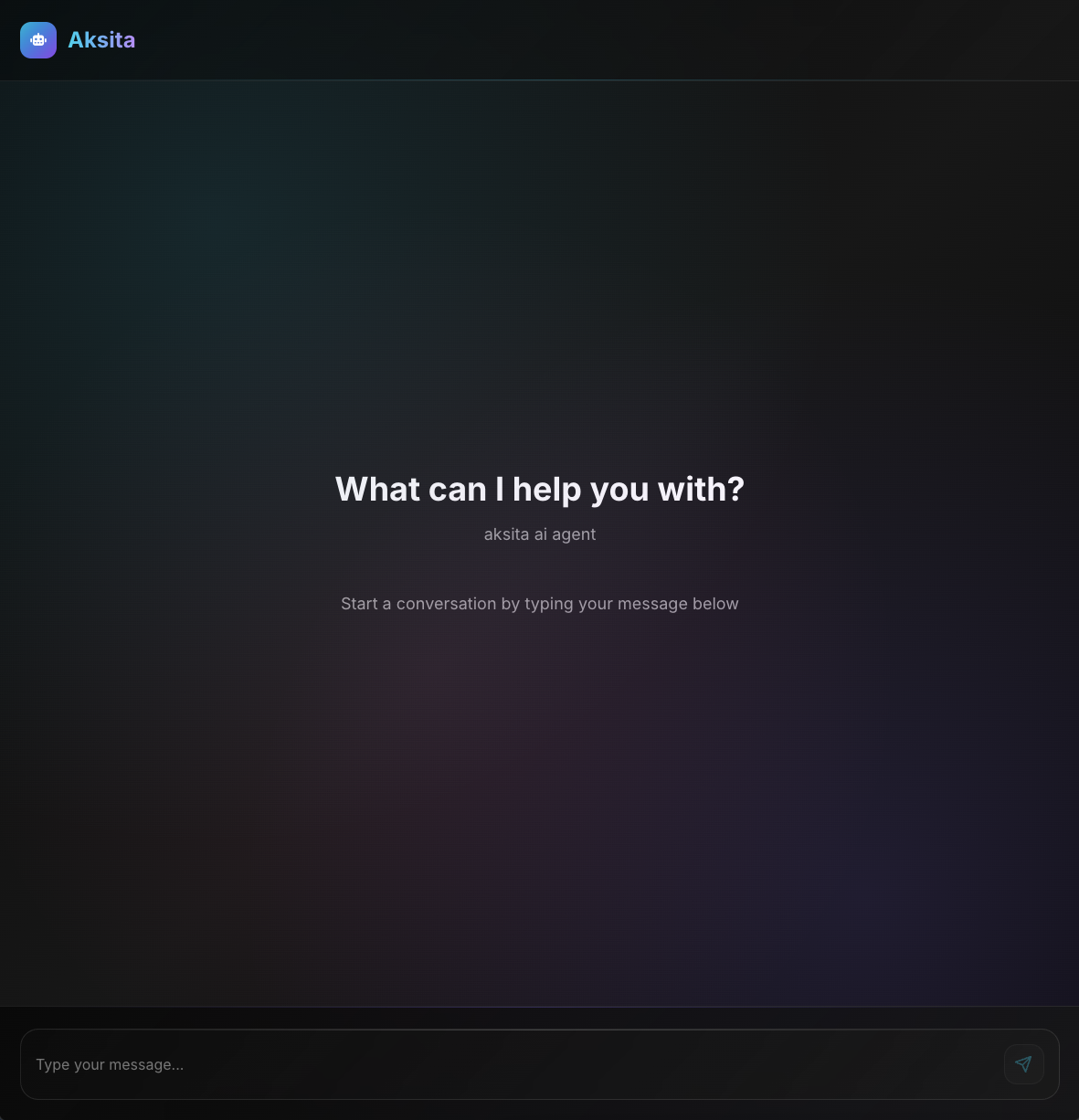
Chat Interface for Testing Agent
Chat Interface for Testing Agent
Chat Interface is the page where you can talk directly with your agent for testing and development. This interface provides the same chat experience that your end users will have.
Main Uses:
- Testing agent before publishing
- Try different questions and scenarios
- See agent response and behavior
- Debug actions and knowledge base
How to Access Chat
Open your agent's Overview page, then click the "Test Agent" button or chat icon at the top.
Click agent card → Overview → Test Agent
Click the chat icon on agent card
Chat Interface Features
Type questions or instructions for the agent. Press Enter or click send button.
All conversations are saved automatically. Scroll up to see previous chats.
Agent will reply based on knowledge base and conversation context.
If agent needs to call action, you will see loading indicator.
🔐 Persistent Context
If your agent has Persistent Context enabled, the chat experience will be different - the agent will "remember" who the user is and maintain conversation context even across different sessions.
When a user first chats (or after session expires), the agent will automatically request login if there are Private Actions requiring context:
User: Check my balance
Agent: To view your balance, I need you to log in first. Please enter your email and password.
After logging in, user context is saved and available for all subsequent conversations:
Two Session Modes:
- Fully Persistent: Session never expires, active until manual logout
- Time-Based: Token expires after set time, can auto-refresh
Actions requiring user context can only be executed after user logs in:
User: Transfer 100k to 08123456789
Agent: Alright, I will transfer 100,000 from your account (****1234) to 08123456789...
Transfer successful! Agent used user_id from context.
Users can log out anytime, which will clear context and require re-login:
User: Logout
Agent: You have been logged out successfully. See you again!
- Test login flow with both valid and invalid credentials
- Try Private Actions before and after logging in
- Test logout and re-login to verify session management
- Use incognito browser to simulate new users
- Verify that context data is used correctly in Private Actions
Understanding Agent Response
Agent answers based on information from knowledge base you added.
User: What are your operating hours?
Agent: We are open Monday-Friday 09:00-17:00 WIB.
Agent executes action and provides feedback on execution result.
User: Please create a support ticket
Agent: Ticket created successfully with ID #12345
If agent doesn't find relevant information, it will inform the user.
User: What is the price of product X?
Agent: Sorry, I don't have information about that product.
Agent Testing Tips
Try easy, difficult, and edge case questions to ensure agent handles well
Test if agent remembers previous conversation in the same session
Ensure actions are called with correct parameters
Ensure all knowledge bases are trained with Ready status
Managing Chat
Click "New Chat" button to start fresh conversation without previous context.
Click delete icon on chat to remove unnecessary conversations.
All chats are saved and can be accessed anytime from sidebar.
Troubleshooting
Ensure agent has trained knowledge base (status Ready)
Check if knowledge base is complete and up-to-date
Check action configuration (URL, headers, authentication) and ensure API endpoint works