
Login Actions
Collect and store user information for personalized experience
What is Login Action?
Login Action is a special action type used to collect and store user information into Persistent Context. This allows your agent to "remember" who the user is and provide personalized and contextual experience.
- • Login with username & password
- • Verify phone number with OTP
- • Authenticate with email & token
- • Login with customer ID
Verify user identity through external API
Store user information in Persistent Context
Unlock access to other Private Actions
Prerequisites
Login Action can only be created if Persistent Context is enabled in Agent Settings.
You need an API endpoint to verify user credentials and return user data.
How to Create Login Action
Open Resources Page
Go to your agent page and click the "Resources" tab in the top navigation.
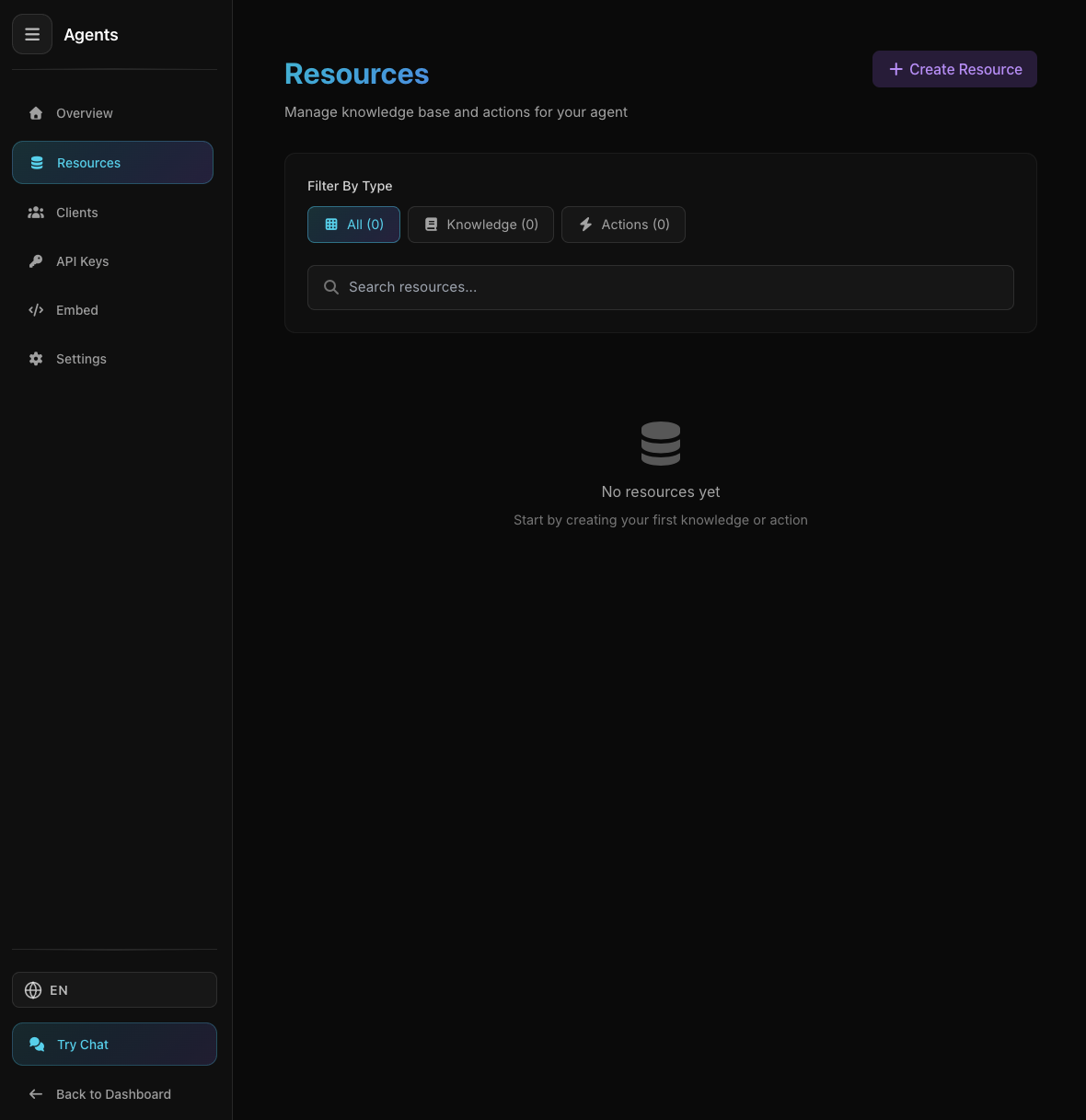
Resources tab on agent page
Resources tab on agent page
Click Create Action
In the Actions section, click the "Create Action" button.
Select "Login" Type
From the action type options, select "Login".
Fill Action Configuration
Give it a descriptive name like "Login with Email" or "Verify OTP".
Login with Email & PasswordExplain in detail what this action does. This helps the LLM decide when to execute the action.
Verify user identity with email and password. If successful, store user ID, name, email, and token for use in subsequent actions.POSThttps://api.example.com/auth/loginContent-Type: application/json{
"email": "<email>",
"password": "<password>"
}Define what parameters need to be collected from the user:
email - User emailpassword - User passwordMap Response to Context
The most important part of Login Action is mapping the API response to Persistent Context. Here you define which fields will be stored.
{
  "success": true,
  "data": {
    "user_id": "12345",
    "name": "John Doe",
    "email": "john@example.com",
    "phone": "+6281234567890",
    "token": "eyJhbGc..."
  }
}data.user_id user_iddata.name namedata.email emaildata.phone phonedata.token tokenSet Success Condition
Define the condition that indicates successful login. This helps the agent know whether to retry or not.
response.success == truestatus_code == 200Save and Test
Click "Save" to save the Login Action. Now try testing it in the chat interface!
How Does Login Action Work?
User talks to the agent. Agent detects that there is a Private Action requiring login.
Agent will ask the user to provide credentials (email, password, or other required information).
Agent sends credentials to your login API for verification.
If successful, the system stores user data from API response into Persistent Context.
Now all Private Actions can access this context. User doesn't need to login again until session expires.
Recommended Context Fields
Here are commonly used context fields. You can customize according to your needs:
user_idUnique user ID in your system
nameUser full name
emailUser email
phoneUser phone number
tokenAuthentication token for API calls
company_idUser company ID (B2B)
Store fields that are frequently used in Private Actions. For example, if Private Actions need user_id and token, make sure both fields are stored by the Login Action.
Security & Session
Context data is stored securely in database and can only be accessed by the agent and the user who owns the session.
System supports two session management modes that can be tailored to your needs:
Sessions never expire, active until user logs out manually
Token expires after set time, can auto-refresh before expiration
- Store refresh_token and expired_at
- Create Private Action for refresh
- Agent auto-refreshes before expiration
Never store user passwords in Persistent Context. Store only data needed for identification and authorization (such as user ID and token).
Best Practices
Provide detailed description of what credentials are needed and what they're for.
Always validate credentials in your backend API, don't trust user input.
Store authentication token in context for use in Private Actions.
Set clear failure conditions so agent can provide appropriate feedback.
Store only data that is truly needed for Private Actions.
Ensure API response provides clear error messages for users.
Troubleshooting
Login Action doesn't appear
Solution:
- Ensure Persistent Context is enabled in Agent Settings
- Refresh the page and try again
Context not saved after login
Solution:
- Check response mapping to context fields
- Ensure API response path is correct (e.g., data.user_id not user_id)
- Check success condition, ensure it matches API response
Agent doesn't request login
Solution:
- Ensure there are Private Actions requiring login
- Provide clear description in Login Action about required credentials
- Test by trying to trigger a Private Action
Session expires too quickly
Explanation:
Session is extended each time the user interacts. Default expiry is 24 hours of inactivity. This is normal behavior for security.
Next Steps
Previous
Actions
Actions Overview