
Agent Settings
Complete configuration for your agent
Basic Settings
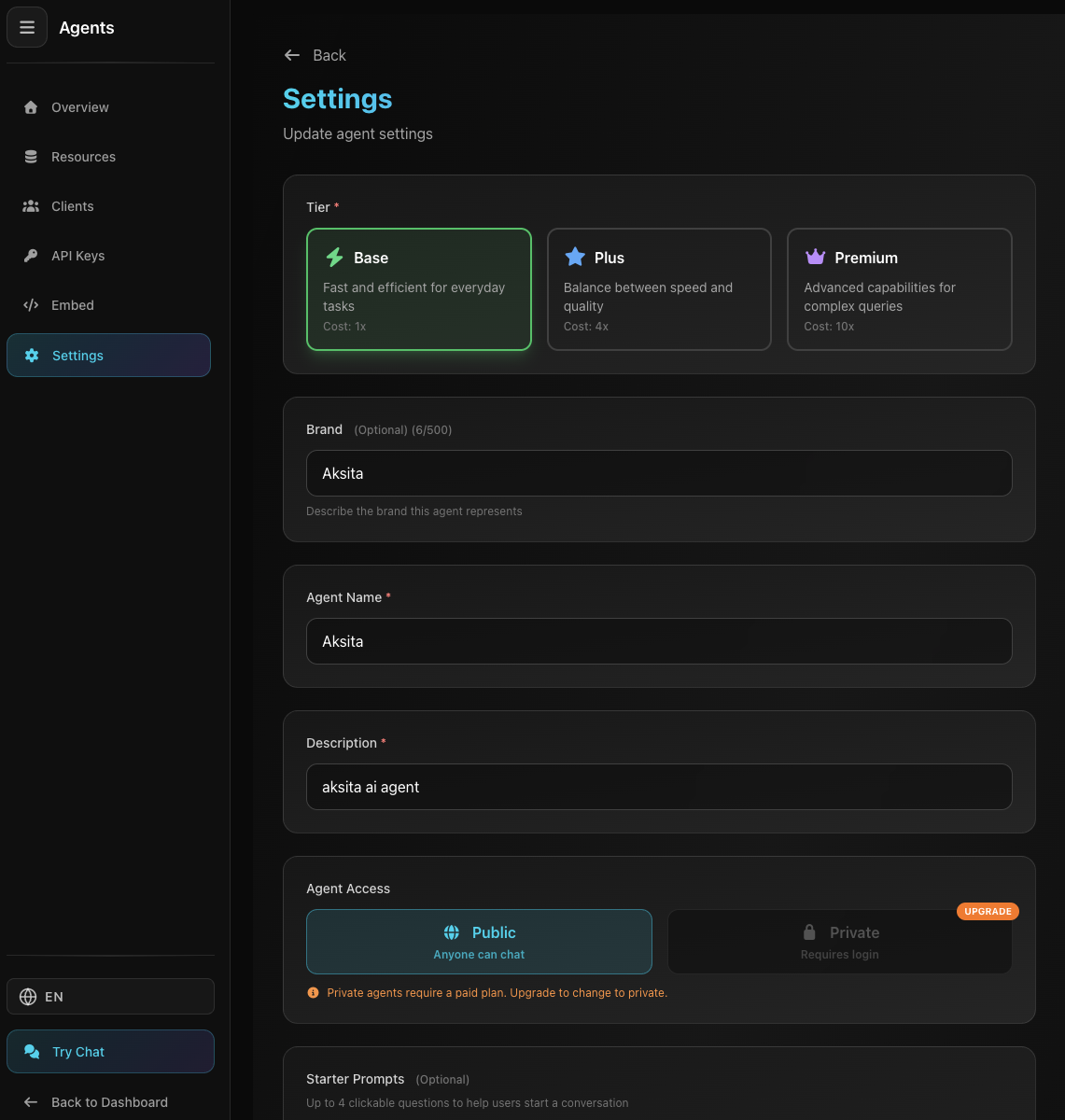
Screenshot: Settings Page
Screenshot: Settings Page
Agent name (2-255 characters)
Short agent description (10-500 characters)
Brand or company name (max 100 characters)
Tier
Standard model, fast and efficient for most use cases
More advanced model with better context understanding
Best model with highest reasoning and creativity capabilities
Tone
Choose agent speaking style:
Professional
Friendly
Casual
Formal
Humorous
Creativity (Temperature)
Slider 0.0 - 1.0 to set agent response creativity level.
Consistent and predictable responses
Creative and varied responses
Max Response Length
Limit agent response length (in characters). Default: 5000 characters.
Check checkbox to remove response length limit
Agent Access
Anyone can chat with agent without login
Requires login to chat (for added clients)
Private agents require paid plan. If changed to public, cannot be changed back without upgrade.
🔐 Persistent Context
Enable Persistent Context to make your agent behave like a logged-in user. Agent will remember user information across conversations and even across different sessions.
A mode where the agent remembers who the user is and stores data like user ID, email, name, preferences, etc. This data is available in every conversation without needing to log in again.
- 1. Enable Persistent Context in Agent Settings
- 2. Create a Login Node to define fields to collect (username, password, email, etc)
- 3. When user first chats, agent will ask them to "login" (fill in fields)
- 4. User data is saved and can be used in Private Actions (HTTP requests with user context)
- Must create exactly 1 Login Node per agent
- Login Node defines what fields to collect from user
- Private Actions can only be used if Persistent Context is enabled
When a Private Action requires specific context fields (e.g., user_id or token), the agent will automatically manage the data collection process:
You don't need to worry about which fields to collect - the AI will determine this based on your action configuration.
Persistent Context has security mechanisms to protect user data:
By default, user context does not expire and will remain available as long as the user doesn't log out.
User context is stored persistently. Users don't need to log in again each time they interact with the agent.
Users can manually log out at any time to remove context data from their session.
Context data is stored securely in the database and can only be accessed by the agent and the user who owns the session.
This toggle enables persistent context mode for your agent
After enabling Persistent Context, you MUST create a Login Node. Without a Login Node, users cannot start chatting because the agent doesn't know what data to collect.
- 1. Enable Persistent Context toggle
- 2. Go to Resources → Actions → Create Action → Login
- 3. Configure Login Node (Manual or HTTP)
- 4. (Optional) Create Private Actions that use user context
Starter Prompts
Initial questions users can select when starting chat (optional, max 4).
- Icon: Choose from 16 available icons
- Title: Short title (max 50 characters)
- Question: Full question (max 200 characters)
Tips & Tricks
- Test agent after changing settings to ensure results match
- Use higher tier for complex tasks
- Starter prompts help users start conversations easily
Previous
Embed
Embed chat widget
Next
Resource Management
Coming soon