
Conversations Detail
Learn advanced features on the conversation detail page, including message viewing, credits tracking, and enhance functionality
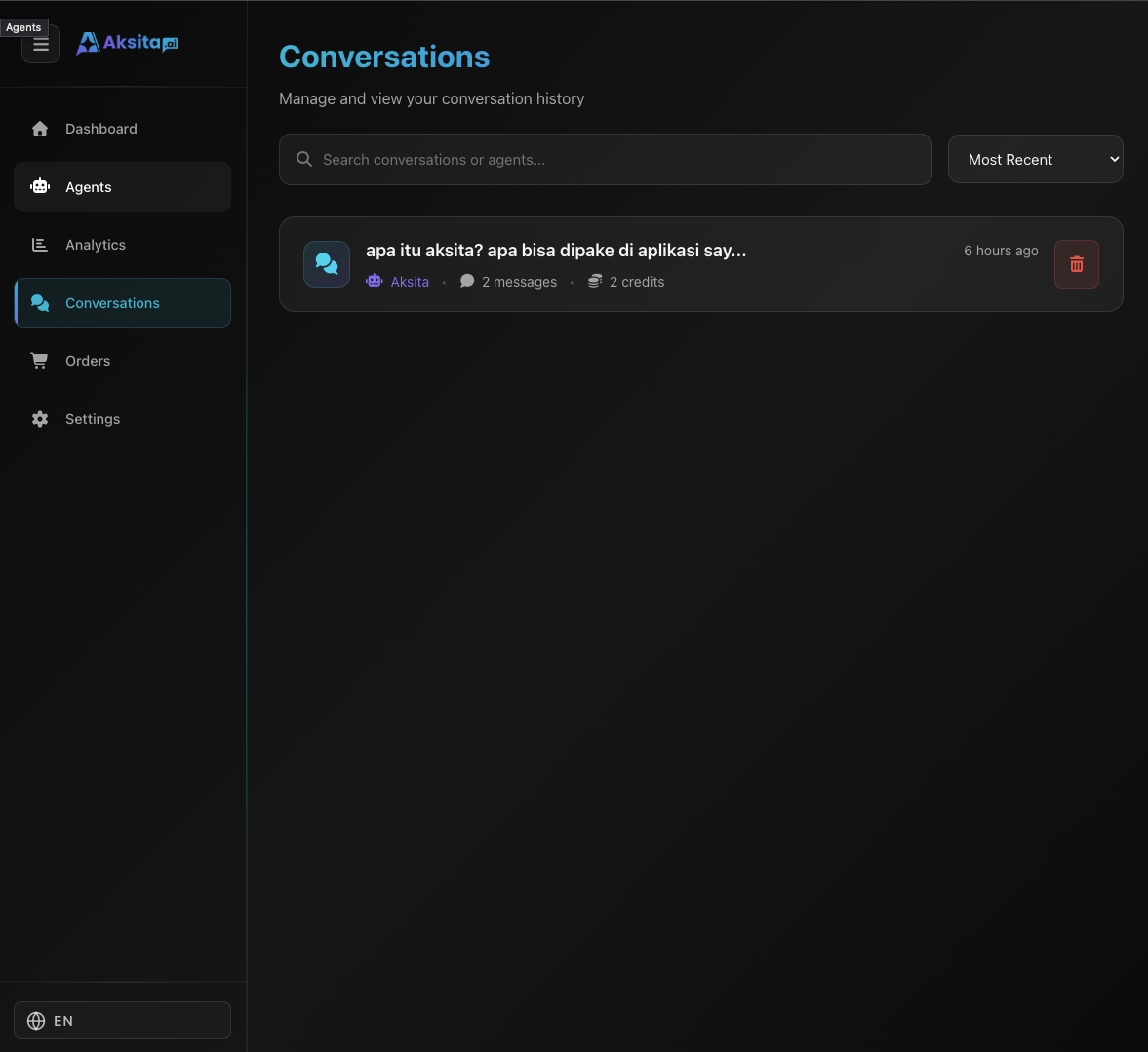
Screenshot: Conversations Detail
Screenshot: Conversations Detail
About Conversation Detail Page
The conversation detail page displays the full transcript of the conversation between user and agent. This page is in read-only mode and shows all messages with credits used per message.
Key Features:
- Chat-Like Interface: Modern design similar to chat messaging apps
- Read-Only Mode: Cannot send new messages, only view history
- Full Transcript: All messages from start to end of conversation
- Credits Tracking: Shows credits used per message
- Human Agent Indicators: Shows when human agent takes over conversation
- Enhance Feature: Button to add response to knowledge base
- Multi-Bubble Support: Support for multiple response bubbles from agent
Chat-Like Redesign
The conversations detail page has been redesigned with a modern interface similar to popular chat messaging apps like WhatsApp or Telegram. This new design makes reviewing conversation history more intuitive and comfortable.
Message bubbles with different colors for user (blue) and agent (gray) like modern chat apps.
Message time displayed directly inside bubble for better context.
Each message shows avatar and sender name for easy identification.
Smooth and natural scrolling like reading chats in messaging apps.
Human Agent Integration
The conversations detail page displays complete information about human agent involvement in conversations, including takeover and handover events.
When human agent takes over conversation, system displays special notification message showing agent name and takeover time.
"Your conversation is now handled by our Customer Service. I'm [Agent Name] ready to assist you."
When conversation is handed back to AI or transferred to another agent, handover notification is displayed.
"Your conversation is now back to being handled by AI assistant."
Messages from human agents are displayed with special indicators to differentiate from AI responses.
- Human agent avatar different from AI
- Agent name clearly displayed
- "Human Agent" badge on messages
Page Header

Screenshot: Header with Agent Info and Read-Only Badge
Screenshot: Header with Agent Info and Read-Only Badge
The conversation detail page header contains:
Back Button
Button to return to the conversations list page
Agent Info
Displays agent icon, agent name, and conversation title
Read-Only Badge
Badge indicating this page is in read-only mode (cannot send messages)
Message Display
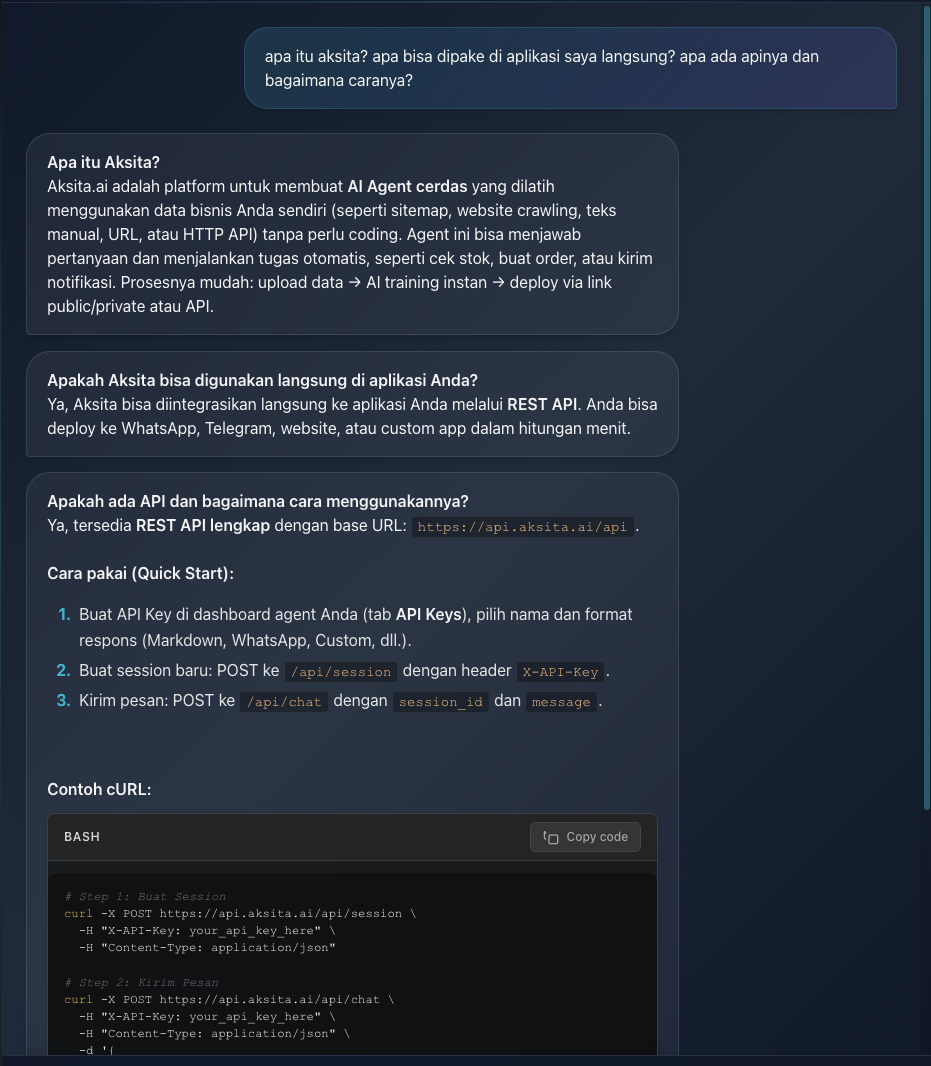
Screenshot: User and Agent Messages
Screenshot: User and Agent Messages
Messages are displayed in the same chat format as the chat interface, with some differences:
User Messages
- • Displayed on the right side with blue background
- • Single bubble format (one message per bubble)
- • Supports markdown rendering
Agent Messages
- • Displayed on the left side with cyan background
- • Supports single bubble or multi-bubble format
- • Multi-bubble used when agent provides multiple intents/responses
- • Each bubble separated by separator
- • Credits displayed on last bubble
- • Enhance button only appears on last bubble
Timestamps
Each message has a timestamp showing when it was sent. Timestamps are converted from UTC to local timezone.
Credits Tracking
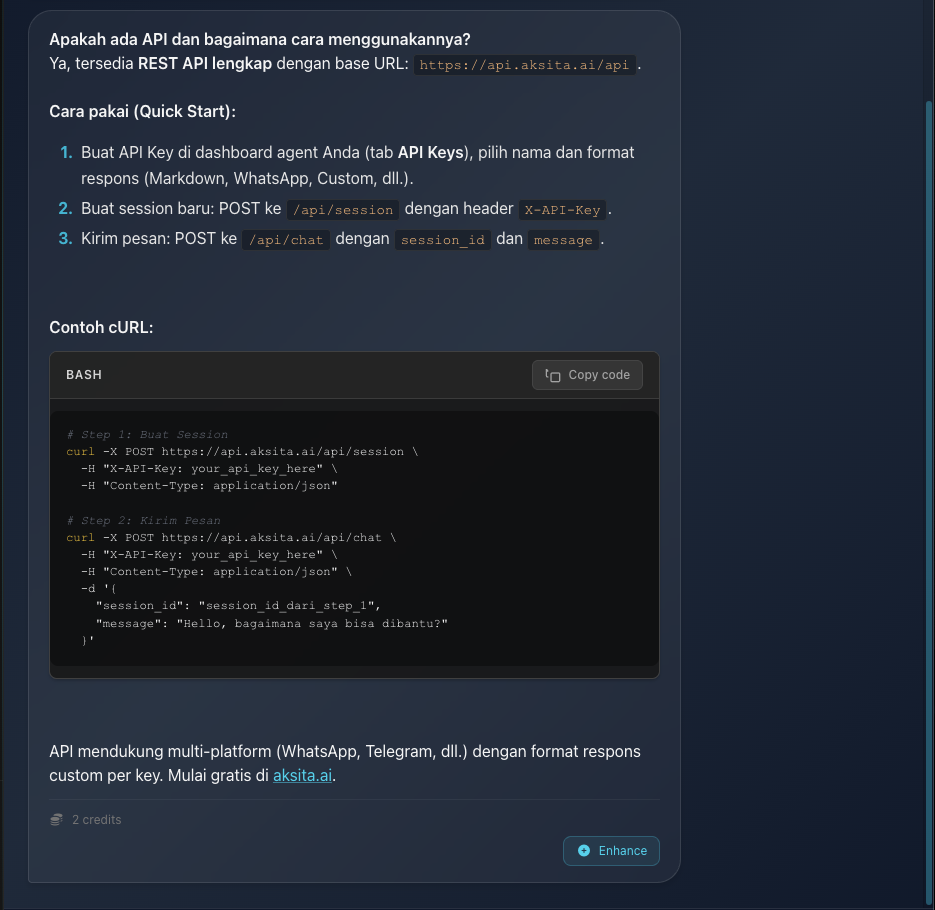
Screenshot: Credits displayed in agent message footer
Screenshot: Credits displayed in agent message footer
Each agent message displays the number of credits used to generate that response:
Credits Information:
- • Per Message: Credits displayed in footer of each agent message
- • Icon: Displayed with coins icon
- • Format: Shows credit number (example: "5 credits")
- • Only Agent Messages: User messages do not show credits
Note: Credits are only displayed if the message used credits (credits > 0). Messages without credits do not show credit information.
Enhance Feature
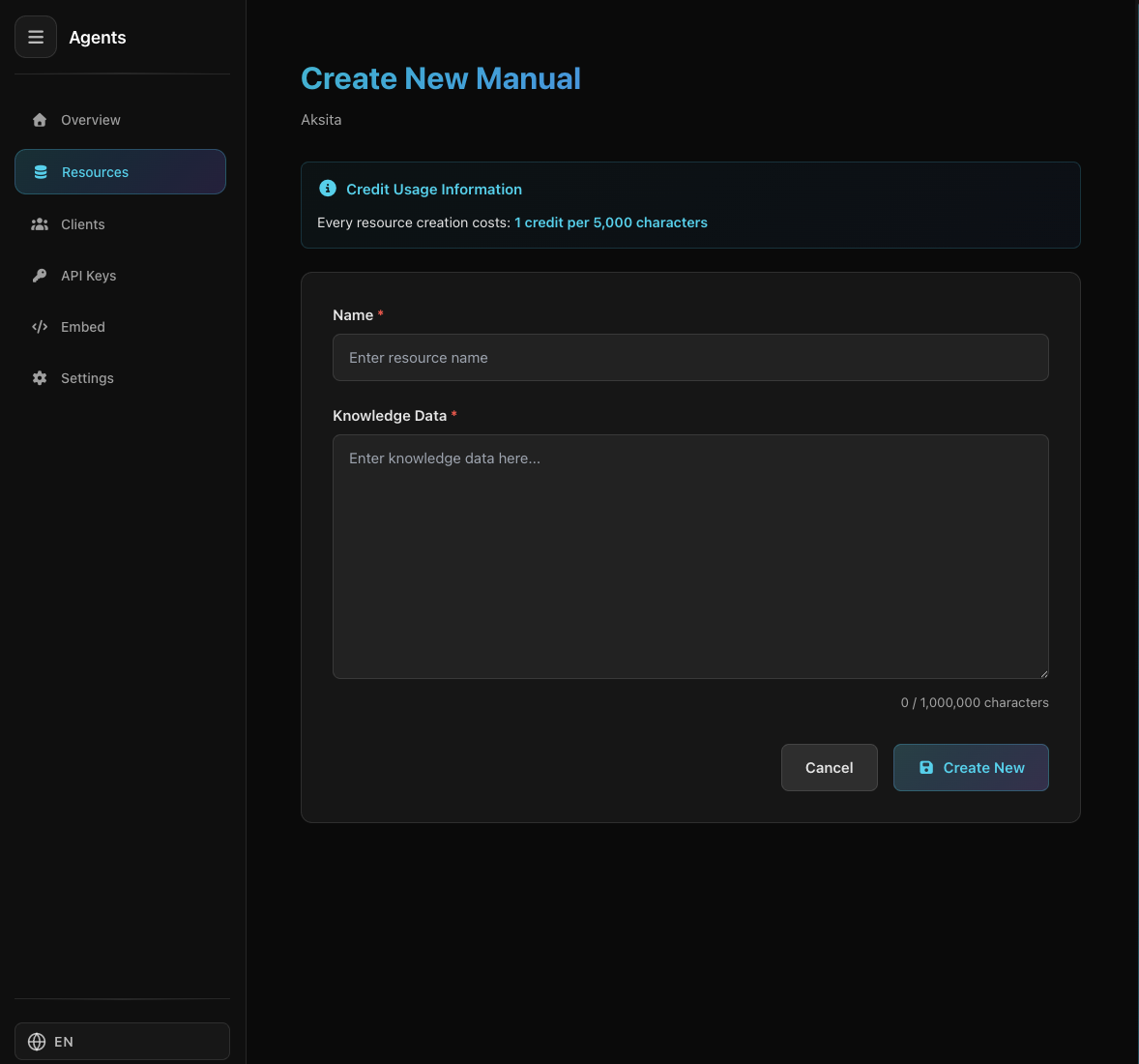
Screenshot: Enhance button in agent message
Screenshot: Enhance button in agent message
The Enhance feature allows you to add agent responses to the knowledge base as manual entries:
How to Use Enhance
- Click the "Enhance" button below the agent message you want to add to KB
- You will be redirected to the create manual knowledge base page
- Content from that message is automatically filled in the form
- Complete other information (title, description) and save
Enhance Button Location
- • Only appears on agent messages (not user messages)
- • For multi-bubble messages, only appears on last bubble
- • Displayed in message footer along with credits info
Tip: Use Enhance to add good responses to the knowledge base, so the agent can use that information in future conversations.
Multi-Bubble Messages
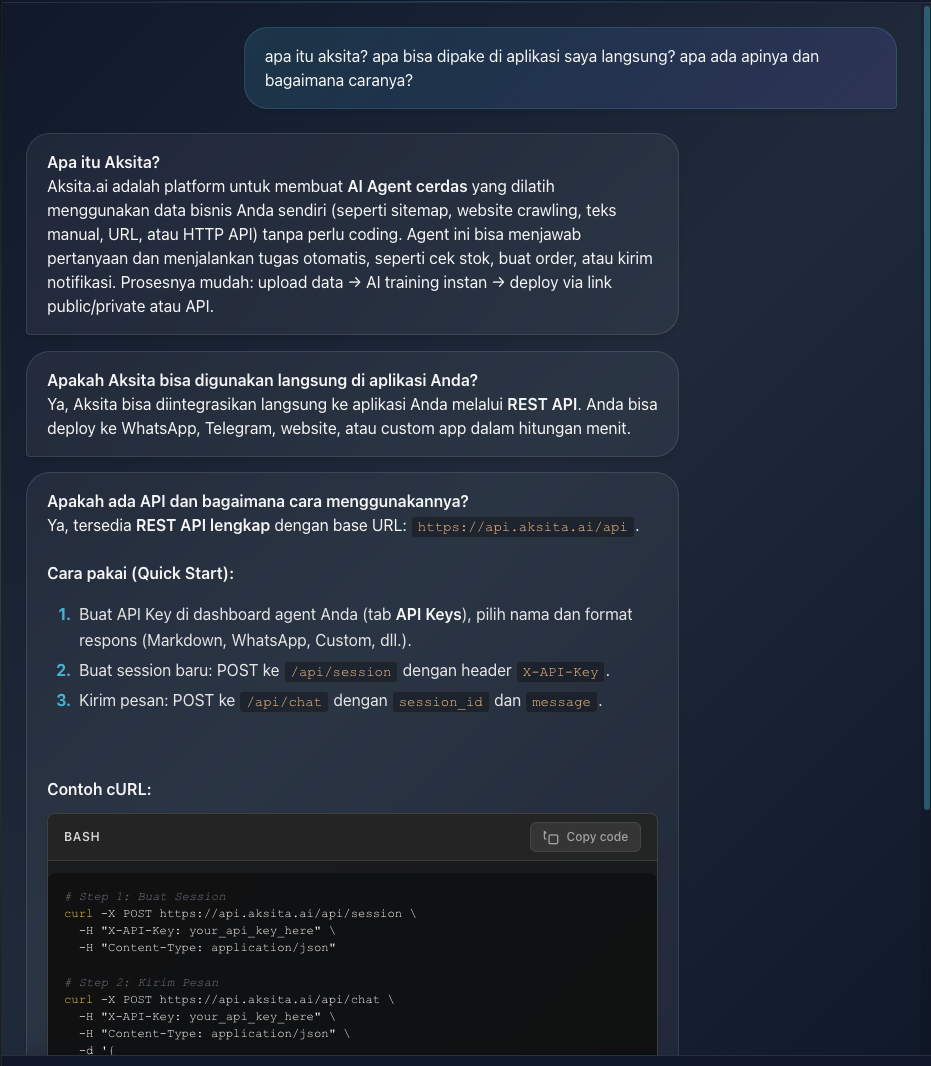
Screenshot: Multiple response bubbles from agent
Screenshot: Multiple response bubbles from agent
Agents can provide multiple responses in one conversation turn. Each response is displayed as a separate bubble:
How Multi-Bubble Works:
- • Parsing: Content is parsed and divided into multiple bubbles
- • Display: Each bubble displayed vertically with spacing
- • Credits & Enhance: Only appear on last bubble of multi-bubble message
Multi-bubble usually occurs when the agent provides multiple intents or when there are multiple relevant knowledge base matches.
Loading & Empty States
Loading State
While conversation is loading, a spinner is displayed with "Loading..." text
Empty State
If conversation has no messages, an inbox icon is displayed with "No messages" text
Tips & Best Practices
Use Enhance
When you find a good response from the agent, use Enhance to add it to the knowledge base. This will help the agent provide better responses in future conversations.
Monitor Credits
Monitor credits used per message to understand cost per conversation. Use this information for optimization.
Analyze Patterns
Use conversation details to analyze patterns in user questions and agent responses. Identify areas that need improvement.