
Settings Page
Manage your profile, change password, and delete account if needed
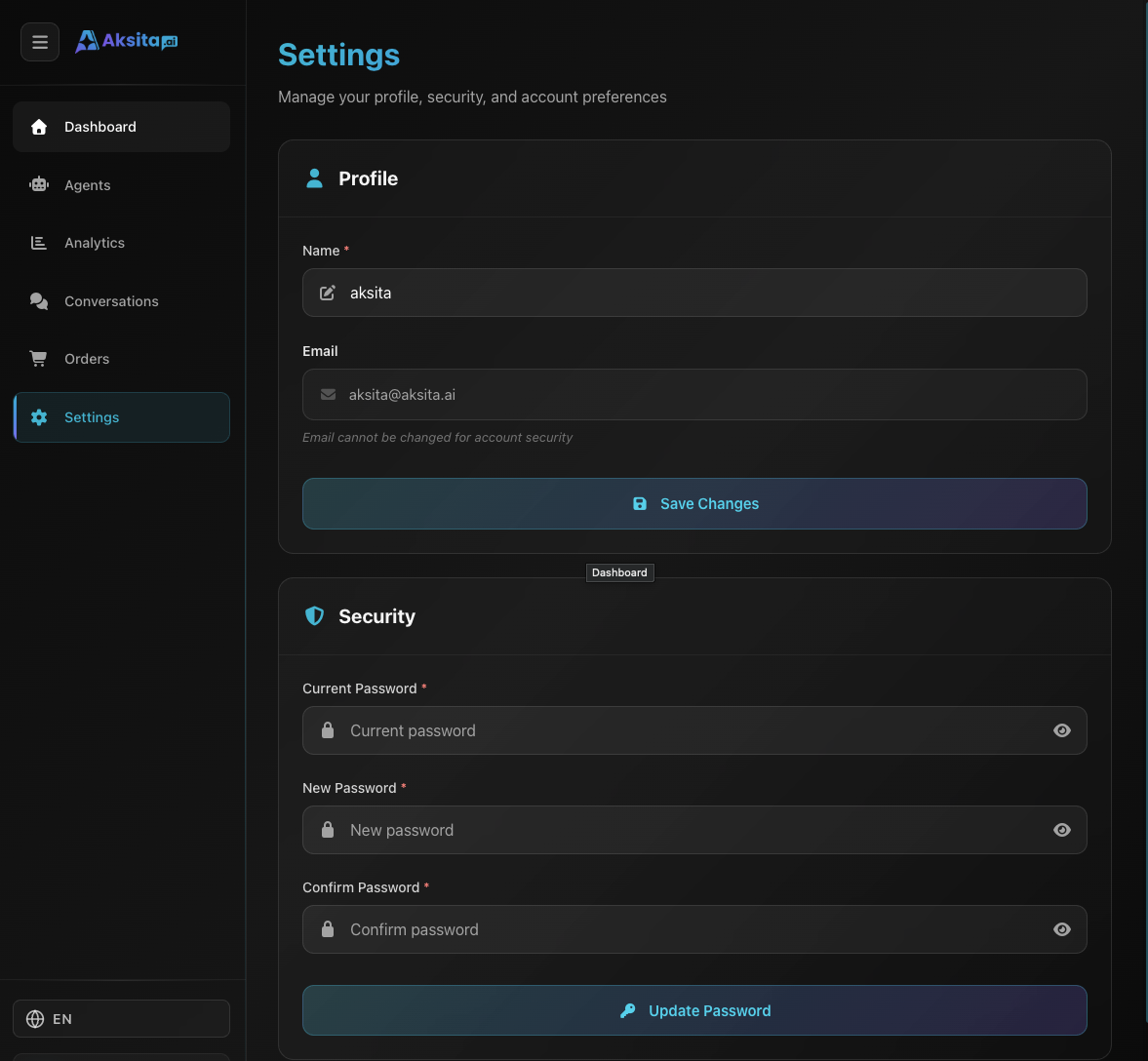
Screenshot: Dashboard Settings
Screenshot: Dashboard Settings
About Settings
The Settings page has 3 main sections: Profile for managing basic information, Security for changing password, and Danger Zone for deleting your account.
Available Features:
- Profile: Edit name, email is displayed but cannot be changed
- Security: Change password with old password verification
- Danger Zone: Permanently delete account (requires password + OTP)
Profile Settings
The profile section has 2 fields:
Name (Editable)
Your name displayed in the dashboard. You can edit this anytime.
- • Minimum 2 characters
- • Click "Save Changes" to save
Email (Read-only)
Your email for login and notifications. <strong>Cannot be changed</strong> for account security reasons.
Email is locked to prevent account hijacking
Security Settings
Security section for changing your password:
Change Password
The password change form requires 3 inputs:
Password Requirements
- • Minimum 8 characters
- • New password must match confirmation
- • Password strength indicator shown while typing
Tips: Use a combination of uppercase, lowercase, numbers, and symbols for a strong password.
Session Management
Understanding how your sessions are managed for account security and agent user experience.
Dashboard Session (Your Account)
Your login session to Aksita.ai dashboard:
- Automatically logs out after 7 days of inactivity
- Session automatically extends when you use the dashboard
- Changing password logs out all devices
Agent User Session (Persistent Context)
For agents with Persistent Context enabled, end-users have different session management:
- • Sessions never expire automatically
- • Users remain "logged in" until they manually log out
- • Context data stored permanently in database
- • Session/token expires after set time (1 hour, 24 hours, 30 days)
- • Agent can auto-refresh tokens before expiration
- • Users need to re-login if token truly expires
Note: Session mode for agent users is configured at the agent level, not in these account settings.
Important Difference: Dashboard session (your account) is different from agent user session (end-users chatting with your agents). Both are managed separately for security and flexibility.
Danger Zone
Section for permanently deleting your account:
Delete Account
Deleting your account will permanently remove <strong>ALL DATA</strong>:
- • All agents you created
- • All knowledge bases and actions
- • All conversation history
- • Subscription and credit balance
- • CANNOT BE UNDONE
Account Deletion Process:
Warning: This action CANNOT be undone. Make sure you backup all important data before deleting your account.
Security Tips
Strong Password
Use a strong and unique password. Don't use the same password as other services.
Regular Updates
Change password regularly (every 3-6 months) to maintain account security.
Secure Email
Ensure your registered email is secure, as email is used for password reset and important verifications.
Backup First
Before deleting account, backup important data like conversation logs or agent configurations.