
Agent Management
Agent Card Explanation
Understanding the information displayed on agent cards in the Agents page
Agent Card Display
Each agent is displayed as a card containing important information about that agent.
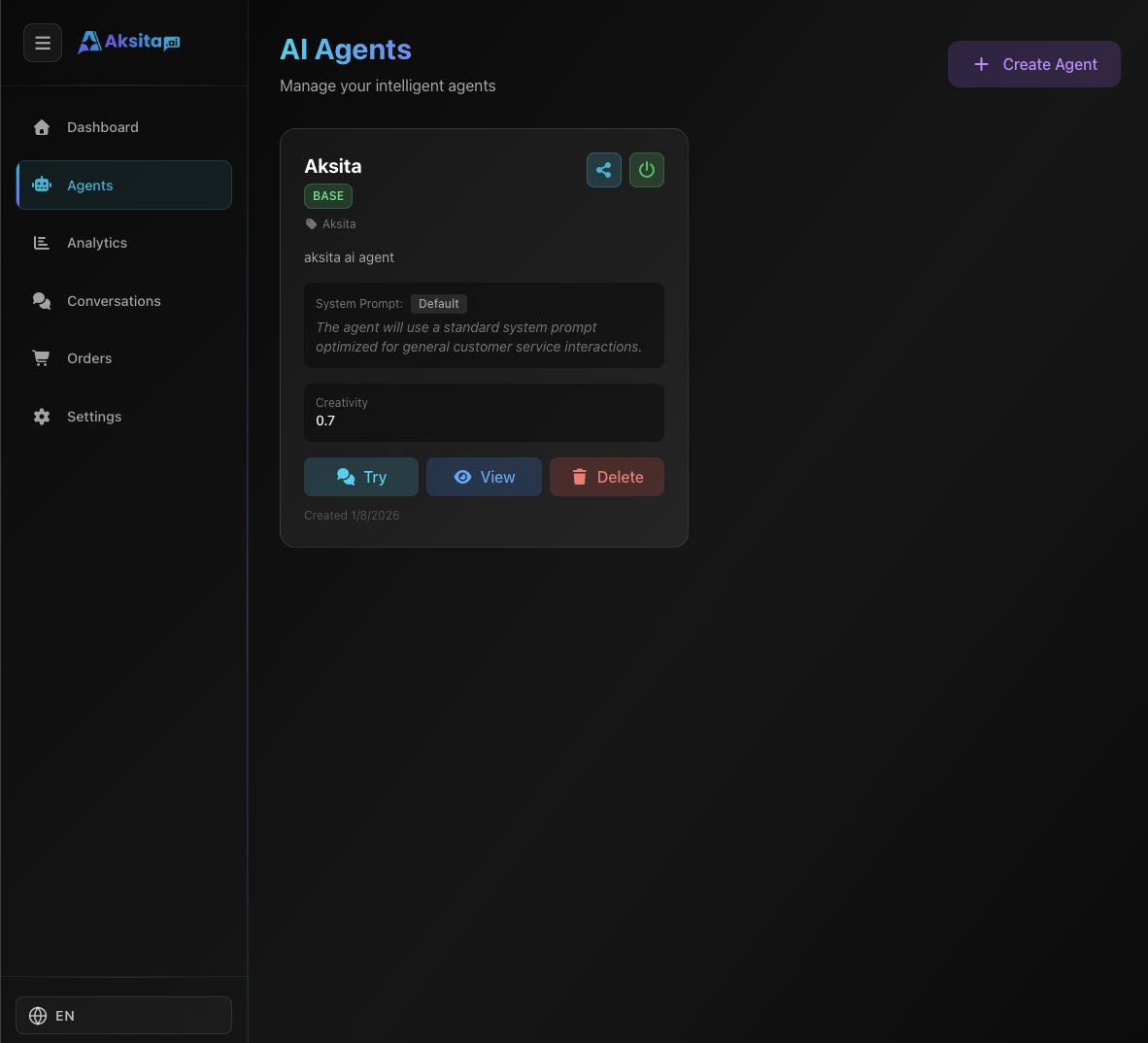
Screenshot: Agent Card
Screenshot: Agent Card
Information on Agent Card:
Agent Name
The name you gave when creating the agent
Tier
Tier badge: Base (green), Plus (blue), or Premium (purple)
Brand
Brand name (if filled)
Description
Short agent description (max 2 lines)
Creativity
Temperature value (0.0 - 1.0)
Top Right Corner Buttons
Card Top Right Corner Buttons:
Share
Share agent link
Status: Green = Active
Agent can be used for chat
Status: Red = Inactive
Agent cannot be used
Action Buttons (Bottom of Card)
Try
Test chat with agent (opens new tab)
View
Open agent detail page (Overview, Resources, etc)
Delete
Delete agent (cannot be undone)
Deleting an Agent
- 1 Click Delete Button
Click "Delete" button at the bottom of agent card
- 2 Confirm
Confirmation modal will appear, click "Delete" to confirm
- 3 Agent Deleted
Agent will be removed from system
What Happens When Deleting?
- Agent is permanently deleted (cannot be undone)
- All agent knowledge bases and actions will be deleted
- All agent API keys will be deleted
- All agent clients will be deleted
- Embed widget will stop working
- Chat history remains on Conversations page
Tips & Tricks
- Click "View" button to enter agent details
- Use "Try" to test agent before publishing
- Toggle green/red status to activate/deactivate agent