
API Keys
Generate and manage API keys for agent integration
What are API Keys?
API Keys are authentication keys to access your agent via API. With an API key, you can integrate your agent into applications, bots, or other platforms.

Screenshot: API Keys Page
Screenshot: API Keys Page
Use Cases:
- Integration with WhatsApp Bot
- Integration with Discord, Telegram, Slack
- Custom applications or websites
Creating an API Key
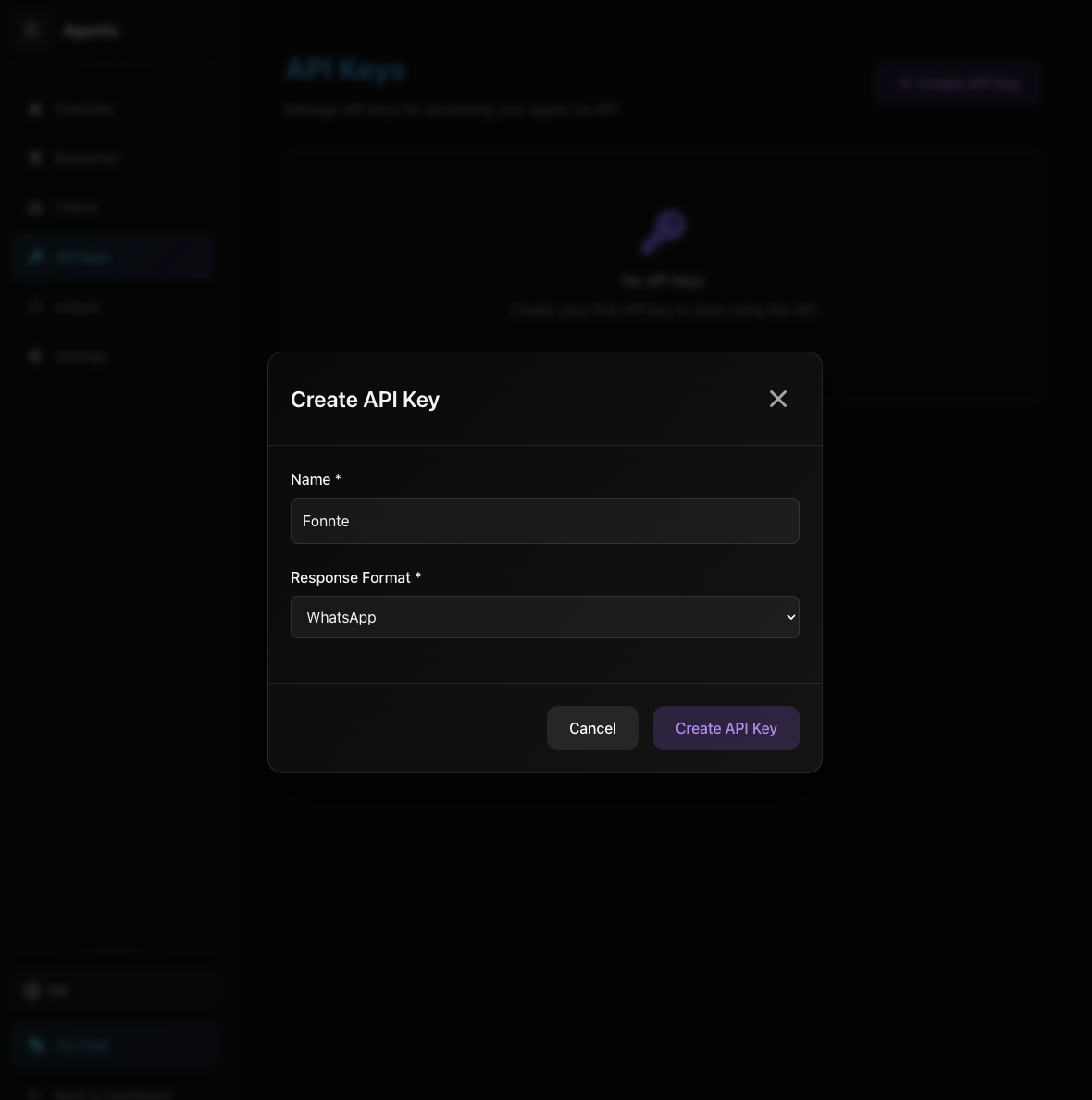
Screenshot: Create API Key Form
Screenshot: Create API Key Form
- 1 Open API Keys Tab
Click "API Keys" tab on agent page
- 2 Click Create API Key
Click "Create API Key" button
- 3 Fill the Form
Name *
API key name (e.g., WhatsApp Bot, Discord Integration)
Response Format *
Response format: Markdown, WhatsApp, Custom Platform, or Custom Example
- 4 Save & Copy
Click "Create API Key" and COPY the key shown (only shown once!)
Response Formats
Standard format with markdown (bold, italic, list, etc)
Special format for WhatsApp (with emoji and WhatsApp formatting)
Specify platform name (Discord, Telegram, Slack, etc) and AI will adapt format
Provide example chat messages and AI will mimic that format
After Successful Creation
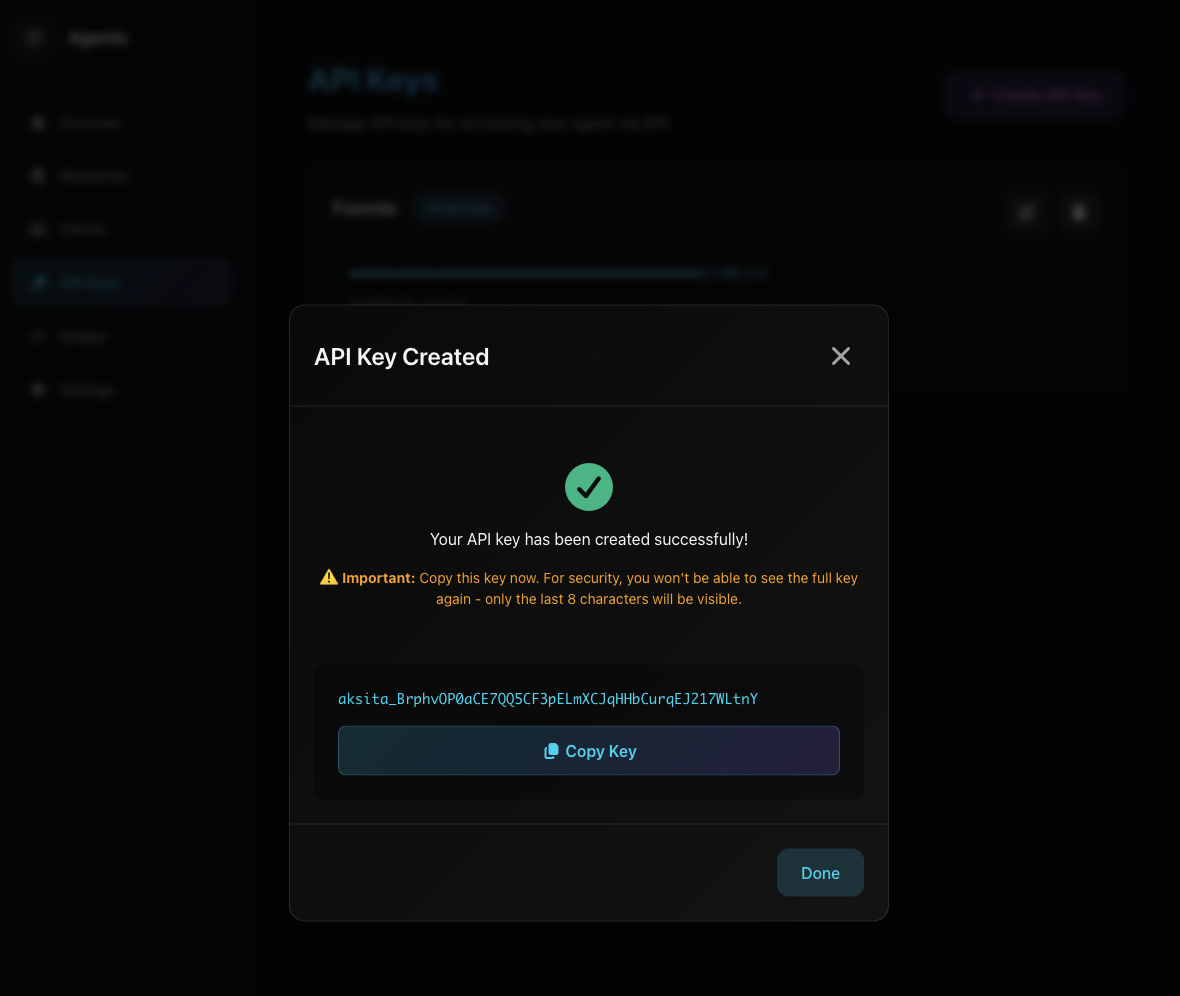
Screenshot: API Key Created Successfully
Screenshot: API Key Created Successfully
Success Modal:
- 1 API Key Displayed
Full key displayed in modal (ONLY THIS ONCE!)
- 2 Copy Key
Click "Copy Key" button to copy to clipboard
- 3 Save Securely
Save key in secure place (password manager, env file, etc)
- 4 Click Done
After copying, click "Done" - key will be masked in list
View API Keys List
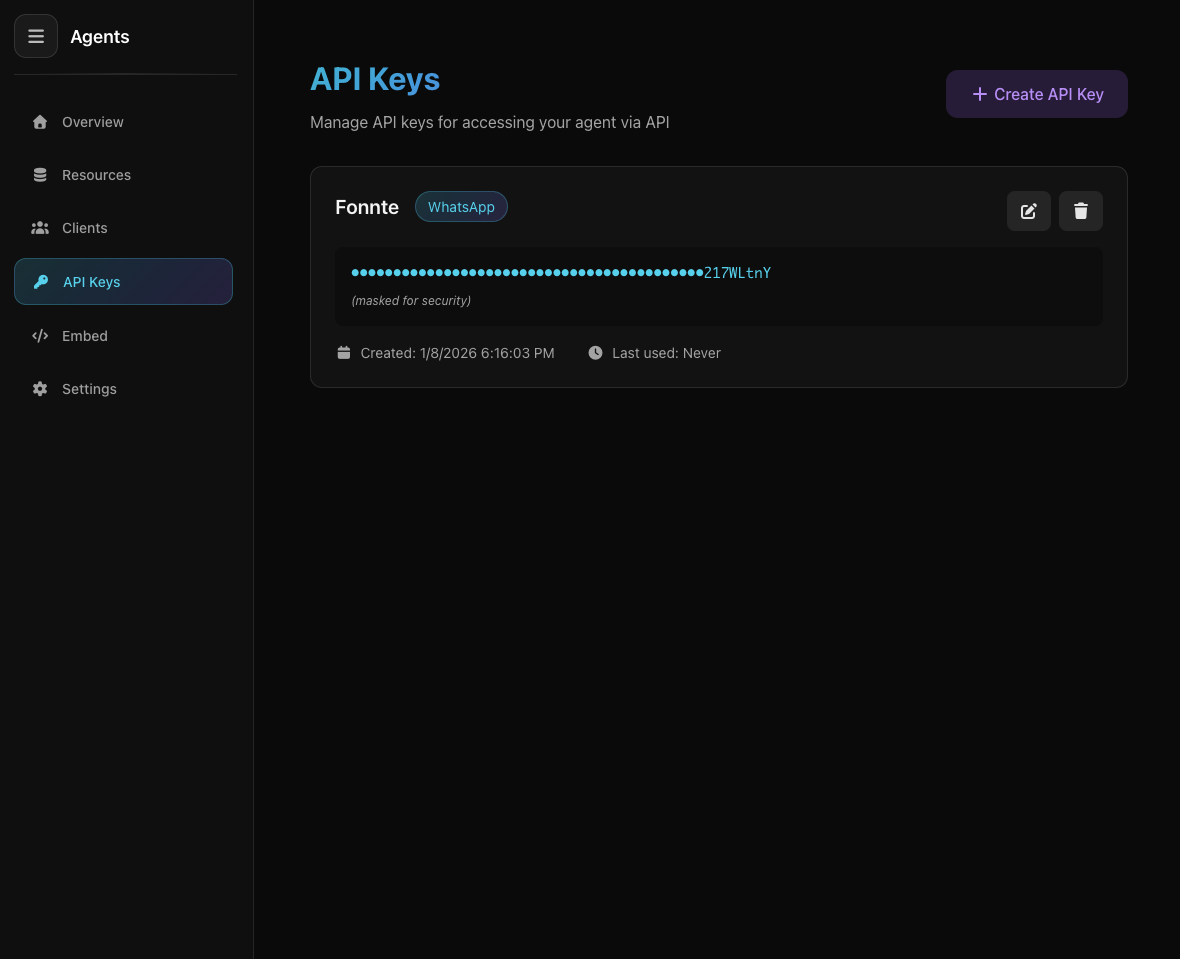
Screenshot: API Keys List
Screenshot: API Keys List
Information on API Key Card:
API key name you provided
Response format badge (Markdown, WhatsApp, etc)
Masked key - only last 8 characters visible (e.g., ••••••••abcd1234)
When key was created
When key was last used for API call
Edit and Delete buttons
Deleting an API Key
- 1 Click Delete Button
Click "Delete" button on the API key card you want to remove
- 2 Confirm
Confirmation modal will appear, click "Delete" to confirm
- 3 API Key Deleted
API key will be removed from system
What Happens When Deleting?
- API key can no longer be used to access agent
- All apps/integrations using this key will error
- Key is permanently deleted (cannot be undone)
- You must create a new key if you want to use the API again
Very Important!
- API key is ONLY shown ONCE when created. Copy and save it securely!
- After modal is closed, key will be masked (only last 8 characters visible)
- Do not share API key with others
Tips & Tricks
- Create separate API keys for each integration (easier to manage)
- Use descriptive names (e.g., "WhatsApp Bot Production")
- If key is lost, delete and create a new one